
Hello! Below we will be going through enabling Multi-Factor-Authentication (AKA “MFA”) using SMS on our Google account.
Before we get started….
– See this page for more on what MFA is
– SMS means via text message sent to your phone
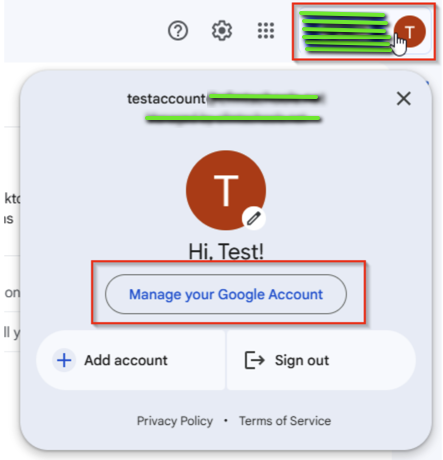
1. Navigate to gmail.com
2. Click on your profile icon in the top right corner of your screen, then select “Manage your Google Account”
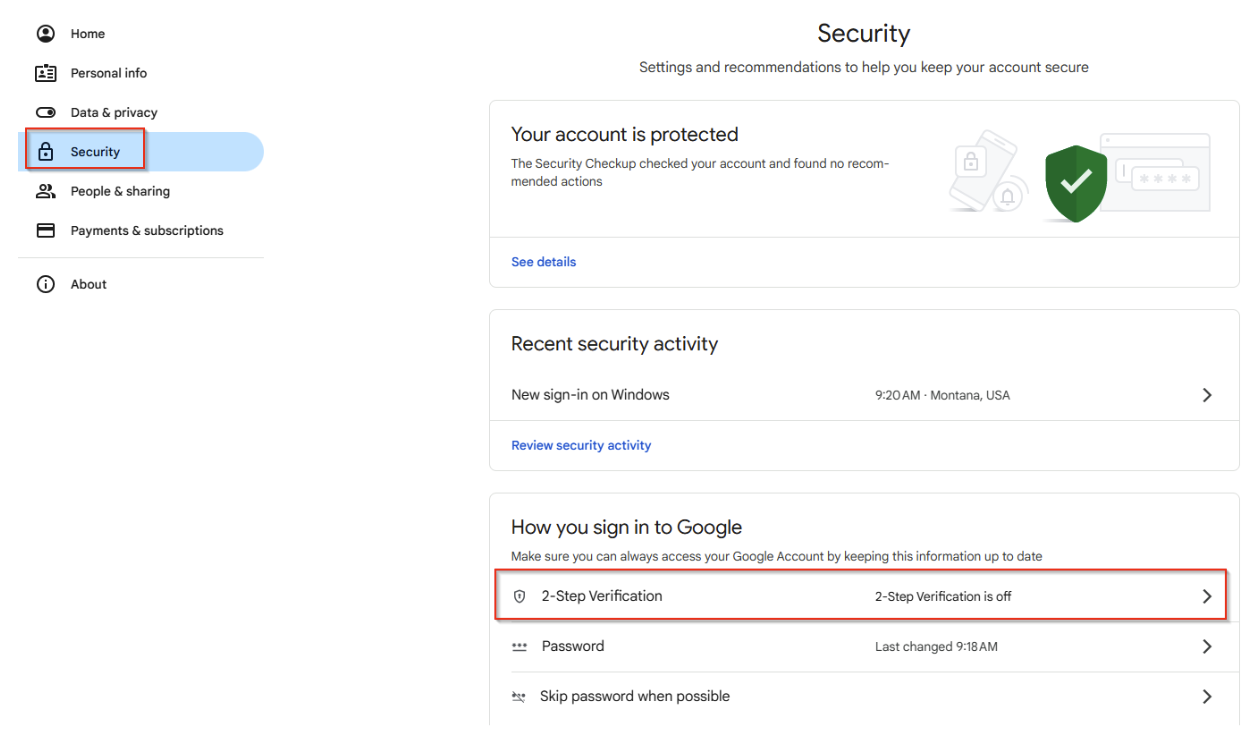
3. Select “Security” in the menu on the left, then select “2-Step Verification”
*Important Note – If 2-Step Verification says it is already on (like the screenshot below) you can stop here, you’ve already completed the setup of MFA

After clicking on “2-Step Verification” you may be prompted for your Google password. Enter the password and select “Sign In”
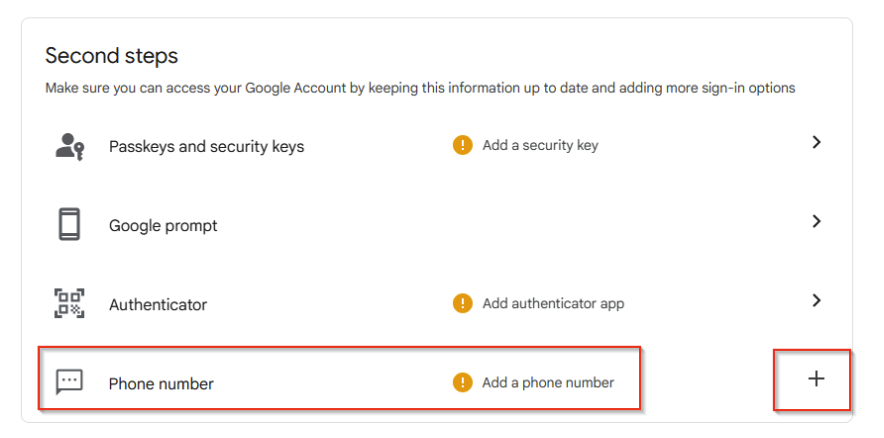
4. On the following screen, select the “+” next to “Phone Number”
5. Next, enter your cell number that you can receive text messages on, ensure that “Receive codes by text message” is set, and select “Next”


6. You should then receive a text, enter the code you received in the next window and select “Verify”
7. After this you’ll receive a message saying the number was successfully added and you are protected by 2-Step Verification – after this, click “Done”
Congratulations! You now have 2-step verification (AKA MFA) enabled on your account!

 JUST406